
Linkwiz for Slack

Discuss your LinkedIn reports in Slack.
Get practical profile advice and engagement ideas from your team's Linkwiz reports. Choose a report in Slack, then ask Linkwiz in a private conversation.
Included with an active company Linkwiz subscription or trial. No extra Slack fee or individual employee subscription.
See what a conversation can do
You ask
What should I improve first on this profile? Cite the stored evidence and analysis date.
An illustrative answer
The stored summary finding lacks a clear customer outcome. Review the linked evidence and analysis date, then clarify who the profile helps and the result it delivers. The rewrite is a suggestion to review.
Explore three examples ↓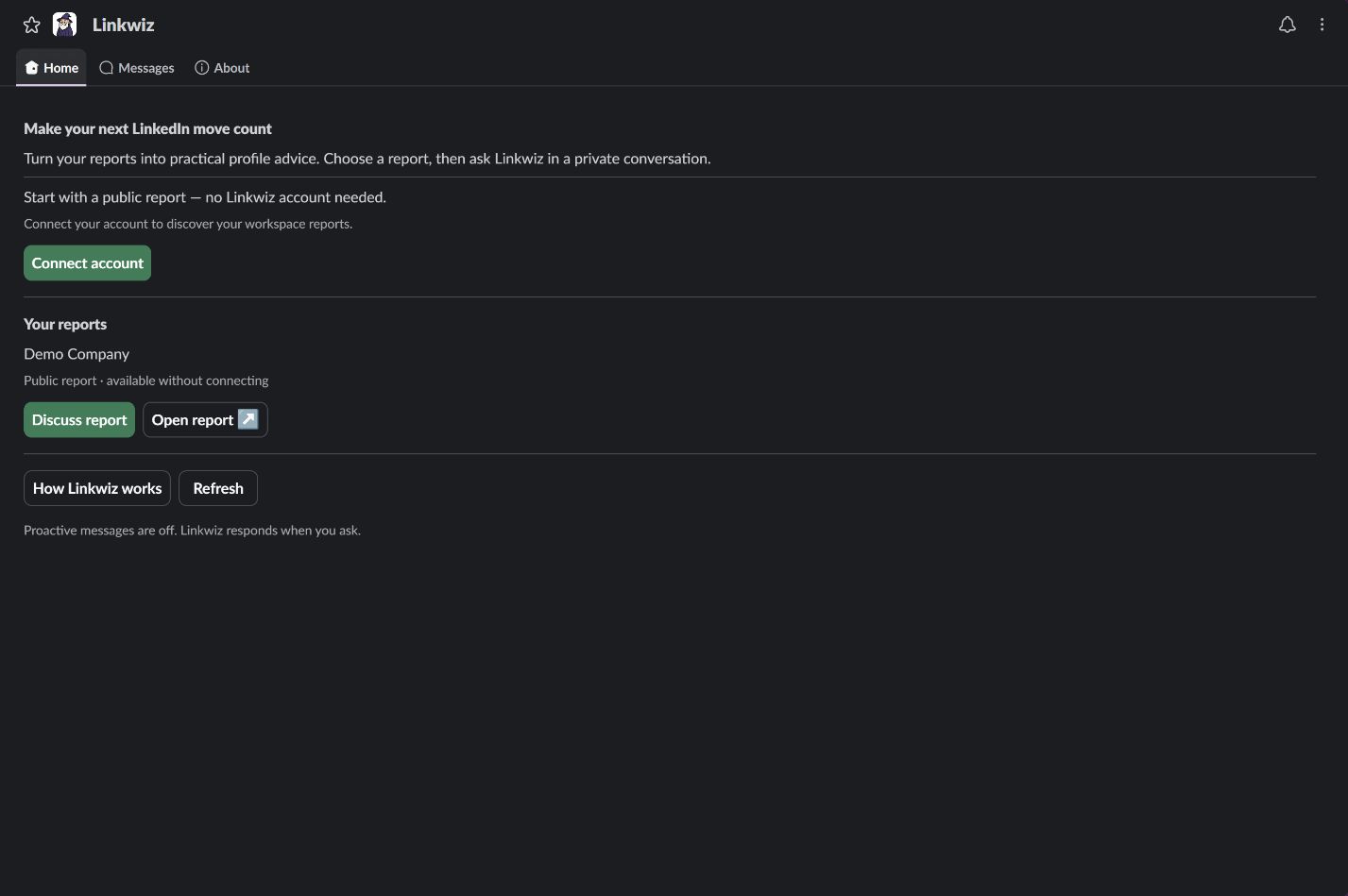
Ideas to try
See what you can do with a report
Select an example to see a question and the kind of answer to expect.
Improve a profile
You ask
What should I improve first on this profile? Cite the stored evidence and analysis date.
An illustrative answer
The stored summary finding lacks a clear customer outcome. Review the linked evidence and analysis date, then clarify who the profile helps and the result it delivers. The rewrite is a suggestion to review.
Fictional example. Actual results depend on your report and permissions.
Find engagement opportunities
You ask
Which engagement opportunities appear in this report? Separate observed activity from suggested next steps.
An illustrative answer
The report contains a relevant public post worth reviewing. Its link and observation date belong beside the suggestion. Read the original context before deciding whether to engage; Linkwiz does not post a reply for you.
Fictional example. Actual results depend on your report and permissions.
Turn advice into next steps
You ask
Make the advice in this thread shorter and turn it into three next steps.
An illustrative answer
Clarify the customer outcome in the summary, review the cited activity and choose one practical update to make yourself. These are suggestions based on the selected report, not new LinkedIn analysis.
Fictional example. Actual results depend on your report and permissions.
Profile advice and engagement ideas in a private conversation
Work through the findings in a selected Linkwiz report, ask follow-up questions in the same thread and review the supporting source links and dates. Activity coverage depends on the stored report; advice is not guaranteed live LinkedIn data.
Your access follows your permissions
Public reports can be discussed without a personal Linkwiz connection while your company access is active. Private reports require your verified account connection and current workspace membership. Choosing a profile personalizes the conversation; it does not verify ownership of that LinkedIn profile. One Slack workspace connects to one Linkwiz workspace.
Review administrative changes before they run
Where enabled, connected Linkwiz owners and admins can request profile additions to allowed reports or create an empty private report. Review and confirm the exact details in Linkwiz. Existing plan permissions, capacity and scan allowances still apply; other API/MCP edits are not generally supported.
Help when setup or access changes
If a connection link expires or a form says it changed, close it and start again from refreshed Slack Home. Do not reconnect the company installation merely because a report is missing: Reconnect resets personal links and consent. If AI is paused or its allowance is exhausted, your admin can check Coaching allowance and the workspace controls. A company or shared service limit can stop AI even when your subscription is active.
Linkwiz uses AI, and suggestions can be inaccurate or incomplete. Review advice before acting. For support, contact Linkwiz support. Read our privacy policy and terms. Linkwiz is not endorsed by Slack or LinkedIn.
Connect in three steps
Choose your Linkwiz workspace
A Linkwiz owner or admin opens the intended company workspace. It needs an active subscription or trial. New customers start by creating their report through the normal Linkwiz onboarding flow.
Set up SlackConnect the Slack workspace
Open Workspace settings → Integrations → Slack → Connect Slack, select the intended Slack workspace and complete authorization. Slack may require its own admin approval. Linkwiz staff approval is not part of this setup.
Choose a report in Slack Home
Open Linkwiz in Slack and select Home → Discuss report. Admins choose which public reports appear there. Each person uses Connect account for private reports, verifies their Slack identity, then returns to Home and chooses Refresh.
Before you connect
What accounts and subscriptions do we need?
Your company needs an active Linkwiz subscription or trial. Slack has no separate Linkwiz fee; employees need no individual subscription or OpenAI/API key. Installation alone does not create a Linkwiz account. If company access expires, Slack stays installed while conversations, administrative actions and scheduled delivery pause. Ask the Linkwiz owner/admin to restore access; send a fresh request after renewal.
Which reports can I discuss?
With active company access, use an admin-selected public report or a public Linkwiz URL already shared with you. Public reports do not require personal Linkwiz linking. Private reports need a verified personal account connection and current workspace permission. Slack and Linkwiz emails can differ; a Slack admin role does not grant Linkwiz admin rights. If Home is empty, ask your Linkwiz admin to share a report or check your permissions.
Does Linkwiz scan or make changes when I ask a question?
Questions use stored report findings, which can be partial or stale. Reading does not trigger scans or post to LinkedIn. Where enabled, a connected Linkwiz owner/admin can request supported profile additions or an empty private report, then review the exact change in Linkwiz before confirming. New or restored profiles automatically queue profile and activity scans and use normal scan allowances. An already-active duplicate does not queue a new scan.
Will Linkwiz message people automatically?
Installing Linkwiz does not automatically opt people in or start outreach. Coaching messages require availability, a verified connection, personal opt-in and workspace controls; time windows, cadence, subscription status and usage limits apply. Send stop to opt out. The current internal proactive program is paused, and customer timed reminders are not yet released.
Start a useful report conversation
An owner or admin connects your company workspace. Then open Linkwiz Home in Slack, choose a report and ask a focused question.
Set up SlackStart a report